Article Content
Historical Data (Point in Time Reporting)
Overview
The Point in Time Reporting filter allows users to view a report's historical data based on a selected date. This feature makes it possible for users with continuous assessments to view the status of assessments from previous periods (e.g., reviewing a report from a current assessment period, then rewinding the data to view results from the last quarter), or to compare and contrast non-assessment data to review the health or status trend of an organization (e.g., reviewing a report on open incidents by location, then rewinding the data to view the numbers from the previous month).
By default, Point in Time Reporting is disabled for new and existing reports.
Historical Data (Point in Time Reporting)
- Click the Historical Data icon in the Toolbar at the top of the screen.
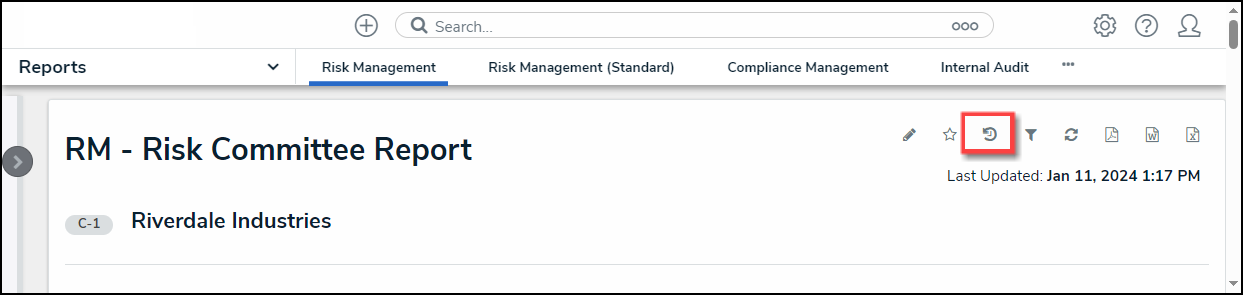
Historical Data Icon
Note:
If Point in Time Reporting has not been enabled for this report, the Historical Data icon will not be visible.
- From the Point in Time Reporting screen, click the Report Date field and select a report date from the Calendar pop-up.
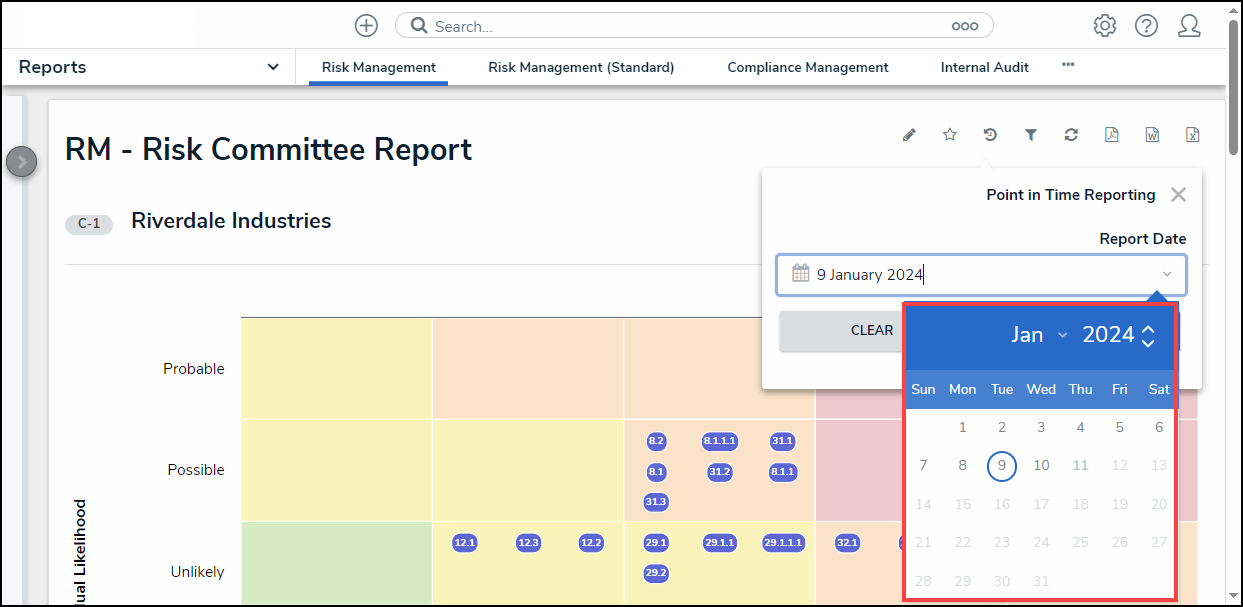
Calendar Pop-up
- Click the Apply button to refresh the report with the historical data based on the Date selected from the Calendar pop-up.
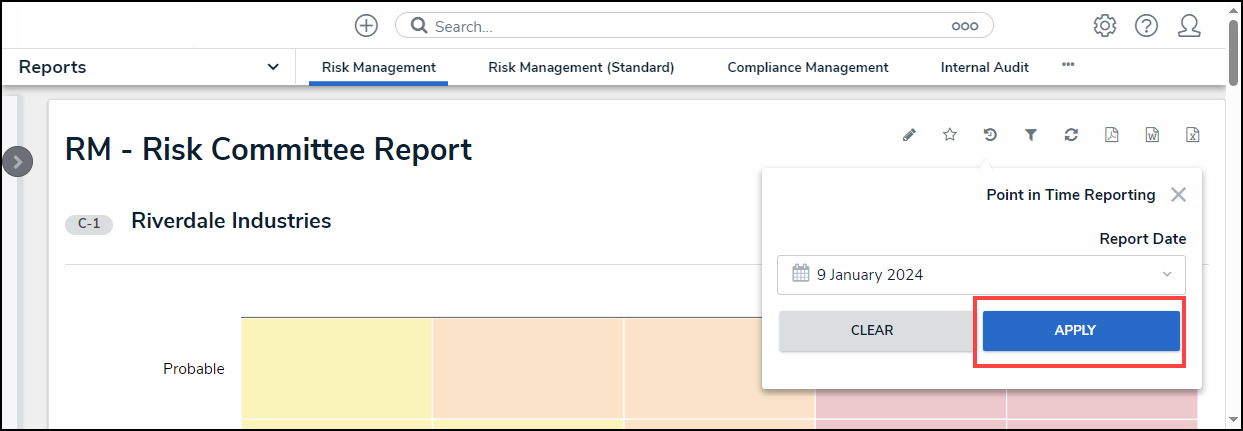
Apply Button