Article Content
Adding a Report to the Home Screen
Setting a Report as Your Home Screen
Overview
Users can favorite reports within the system by clicking the Star icon on the Report screens.
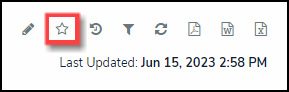
Star Icon
Starred Reports will appear in the Tab section on the user's Home screen, next to the My Tasks tab. The system uses the Report's name as the name of the Tab on the Home screen.
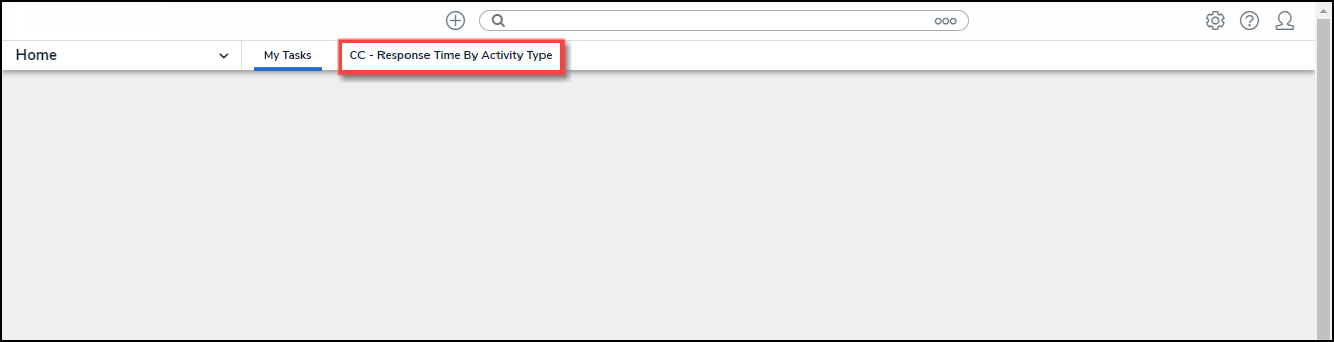
Starred Report Tab
Once a Starred report is opened, the report data is not updated. The data represents a snapshot of the report data. Click the Refresh icon to update the report data on the open report.
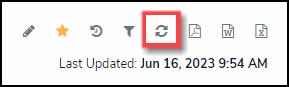
Refresh Icon
Adding a Report to the Home Screen
Data Grids and Data Analytic reports cannot be added to the Home screen.
Adding a Repeatable Form report to the Home screen can cause performance issues, depending on the amount of data within the report.
- From the Report, click the Star Icon.
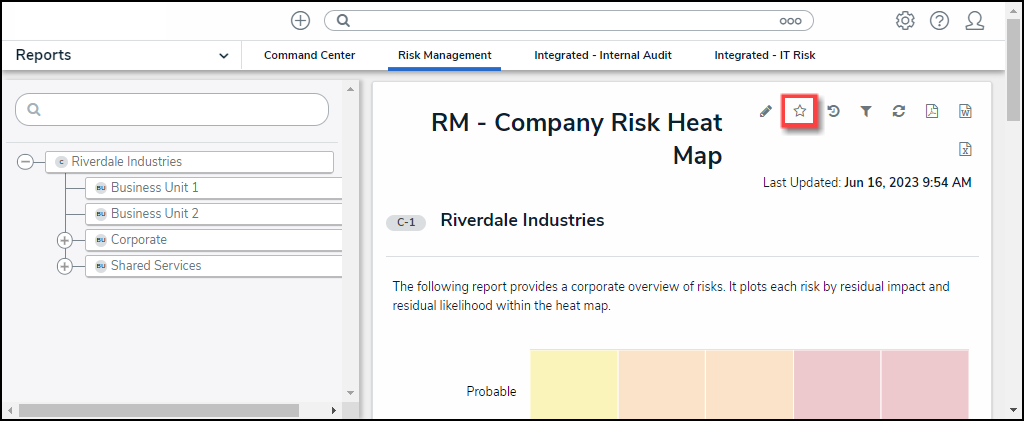
Star Icon
- From the Add Report To Home pop-up, select the +Add To Home link.
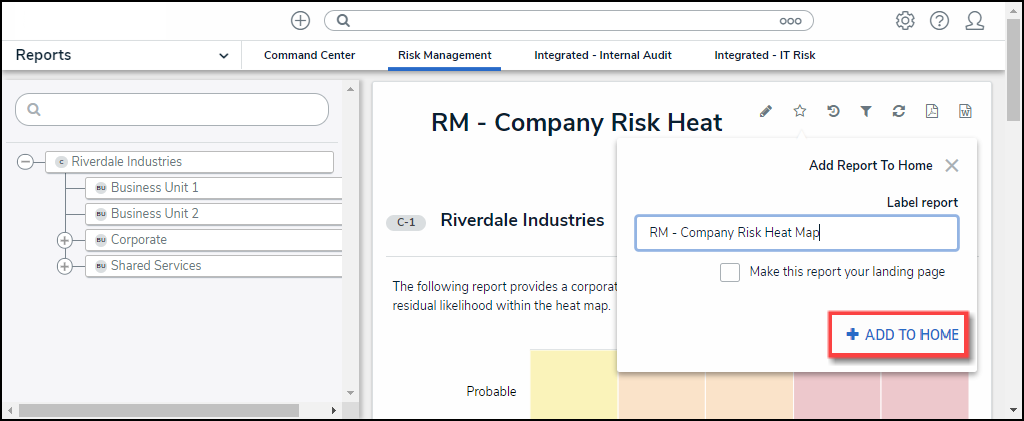
+Add To Home Link
- The Add Report To Home pop-up will close, and the Star icon will appear solid, indicating that the report has been added to the user's Home screen.
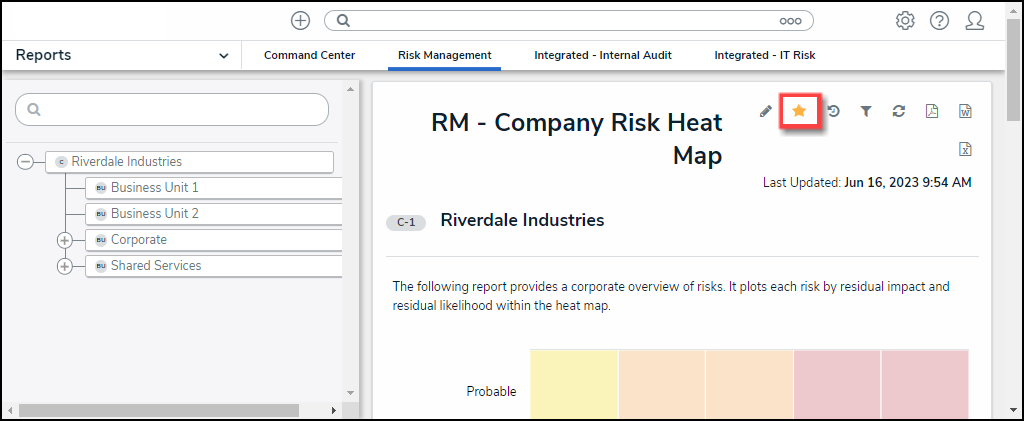
Star Icon
Setting a Report as Your Home Screen
Before you can set a Report as your Home screen (landing page), you need to first add the Report to the Home screen.
- From the Report, click the Star icon.
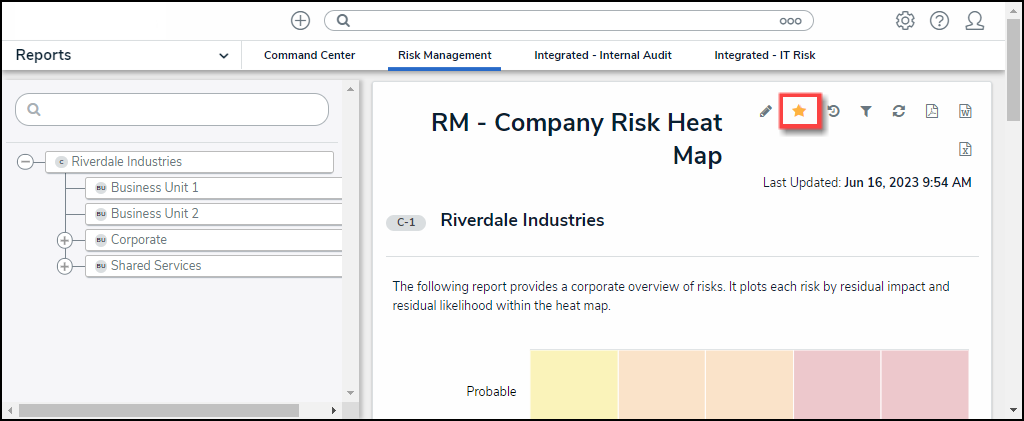
Star Icon
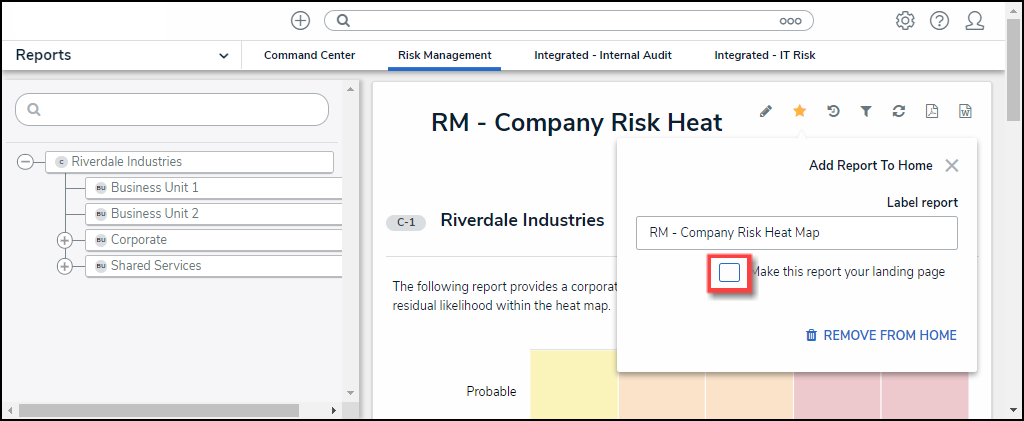
- Click the Make this report your landing page checkbox.
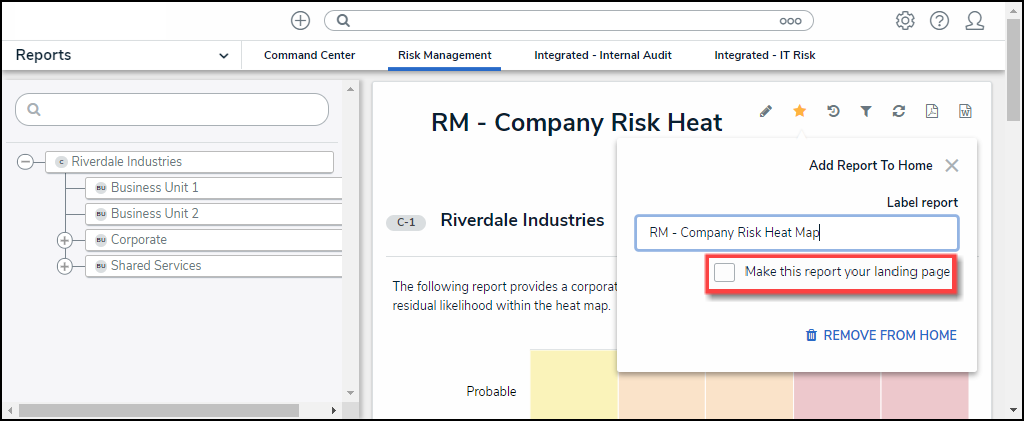
Make This Report Your Landing Page Checkbox
- When selected, the Make this report your landing page checkbox outline will change color from light gray to blue, indicating that the report is selected to be the new Home screen (landing page).
Make This Report Your Landing Page Checkbox - Selected (blue)