Article Content
Creating a New Compliance Check List
Overview
A Compliance Officer can create a compliance task list to assess various organizational elements against legal standards. These task list help to identify areas of growth and improvement within an organization.
User Account Requirements
The user account used to log into Kroll's Managed Compliance Software must have Compliance Officer permission to access the Compliance Task List section.
Navigation
- From the Home screen, click on the Home dropdown menu.
Home Dropdown Menu
- Click the Compliance Task List link.
Compliance Task List Link
- From the Compliance Task Lists screen, click the + Create button.
+ Create Button
Creating a New Compliance Task List
- From the Creating a New Compliance Task List screen, enter a task list name in the Compliance Task List Name field.
Compliance Task List Name Field
- Enter a brief description outlining the compliance task list in the Description field.
Description Field
- Enter a business unit name in the first Business Unit field and select a business unit from the dropdown menu. The first Business Unit field is the Dimension field and tags data. Selecting the Dimension will tag the data with the appropriate business unit to help identify similar objects.
- Enter the business unit used in the first Business Unit field in the second Business Unit field and select a business unit from the dropdown menu. The second Business Unit field is for reporting and establishes a link between the business unit and assessment.
Business Unit Fields
- Click the Create button.
Create Button
- Click the Define Scope button.
Define Scope Button
- The Risk Assessment screen will appear.
Risk Assessment Screen
- (Optional) Use the Filter fields to narrow the search results by entering the corresponding keyword in the Filter field (e.g., Library in the By Assessment Type field) and selecting a filter from the dropdown list.
Filter Fields
- Click the Delete (x) icon next to a filter on a Filter field to remove a filter.
Delete Icon
- Click the +Add link on risk categories, processes, or objectives to create the assessment focus. Users can select multiple risk categories, processes, or objectives to add to the assessment.
+ Add Link
- (Optional) An Assessment dropdown menu will appear under an object if the object has previous assessments.
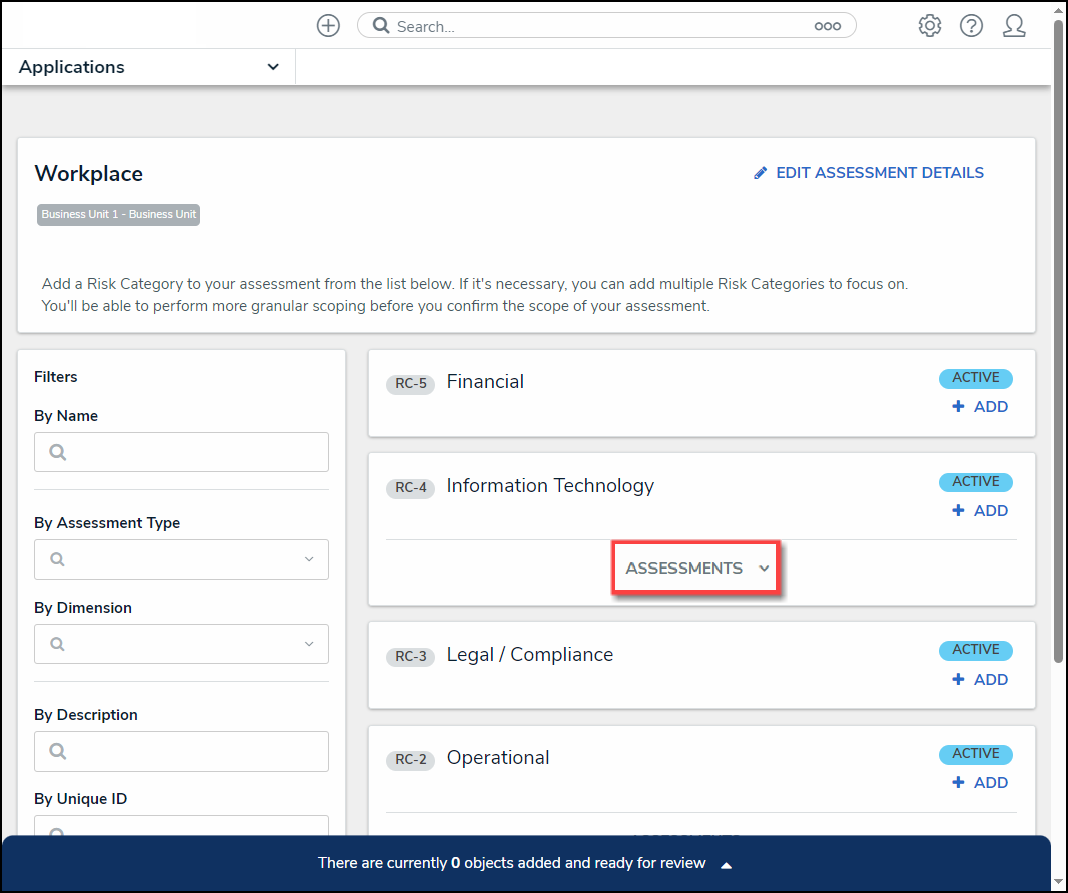
Assessment Dropdown Menu
- (Optional) Click the Assessment dropdown menu to view the object's previous assessments.
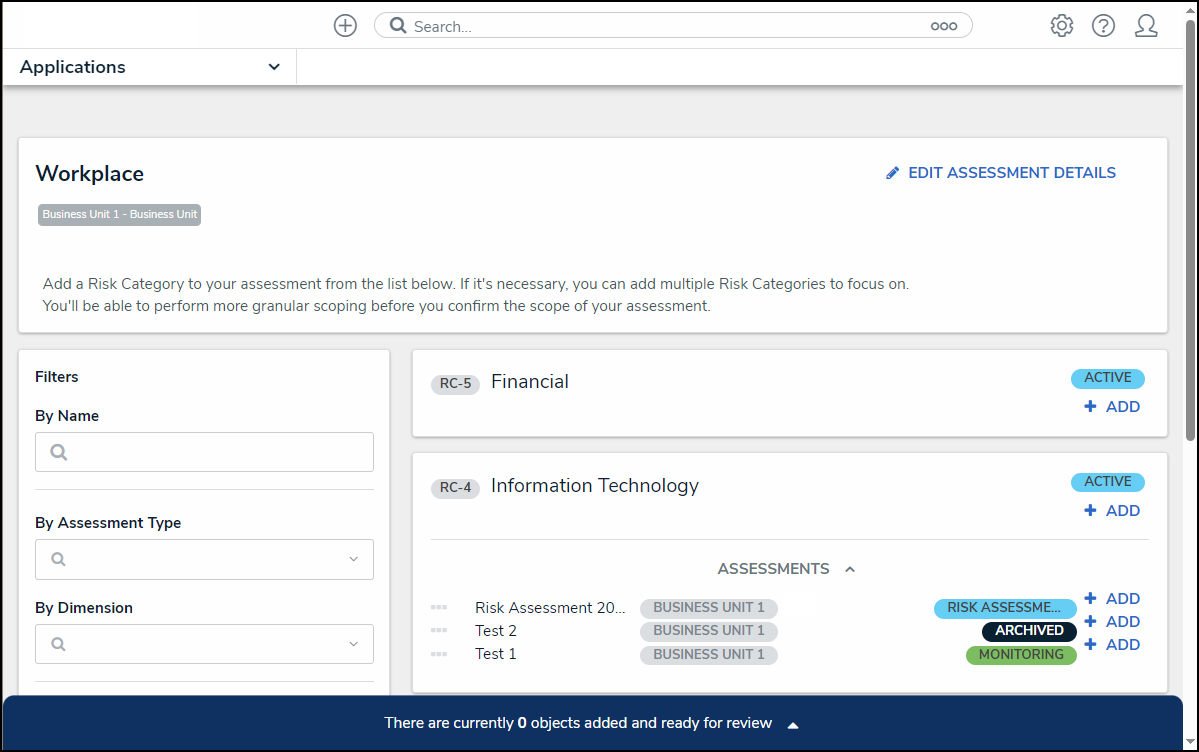
Assessment Dropdown Menu
- (Optional) Click on the + Add link next to an assessment to add a previously assessed object to the new assessment.
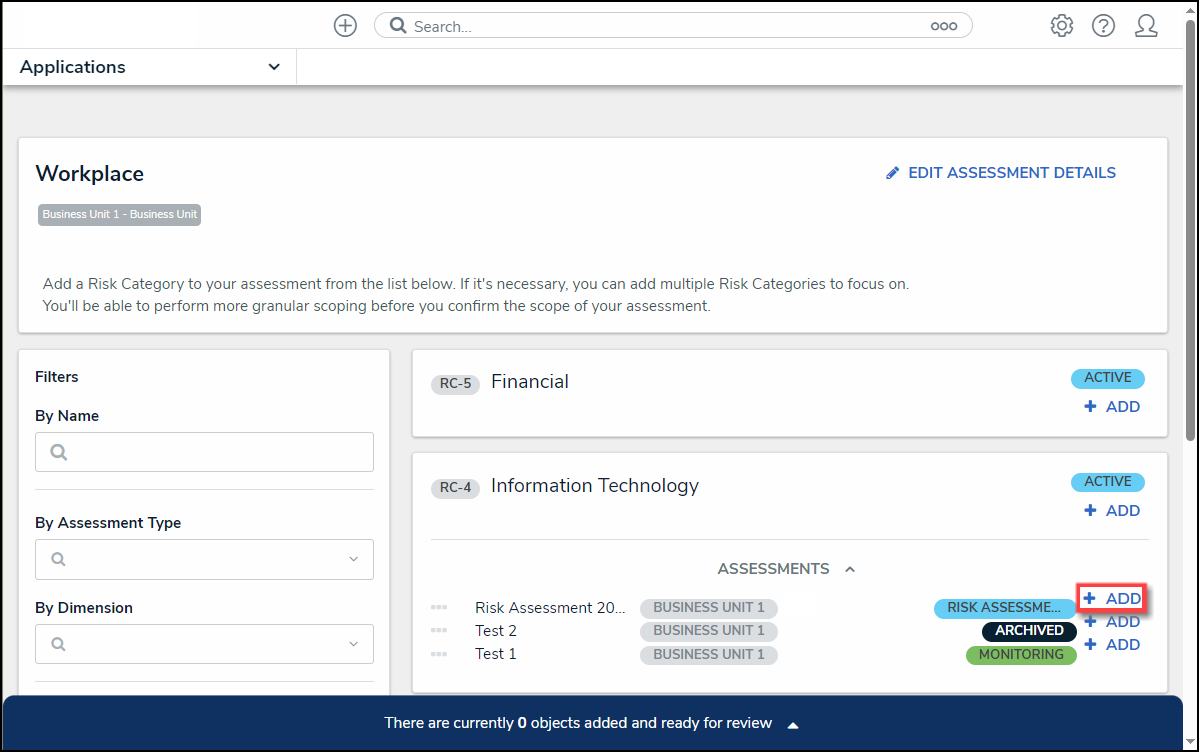
+ Add Link
- As you add risk categories, processes, or objectives, the banner at the bottom of the screen will track the number of objects added to the assessment for review.
Object Count
- Click the Banner Arrow to open the Assessment Scope screen.
Banner Arrow
- (Optional) Click the Expand icon in the Filters section and select an Object Type from the Select Object Type to Filter Tree With dropdown menu to show the available plain text, select list, and property filters for that object type. The Navigation Tree will be filtered using the object type selected from the Select Object Type to Filter Tree With dropdown menu.
Select Object Type to Filter Tree with Field
- (Optional) Use the Filter fields to narrow the search results by entering the corresponding keyword in the Filter field (e.g., Creation in the By State field) and selecting a filter from the dropdown list.
Filter Fields
- Review the assessment's scope by clicking the Expand icons on the Navigation Tree Nodes to review the object's relationships and references. Data Definitions determine the objects that appear on the Navigation Tree.
Expand Icon
- By default, all objects and their relationships and references are automatically selected, including them in the assessment scope. Deselect the checkbox next to an object to remove it from the assessment's scope.
Object Checkbox
- Deselecting an object in an upper node will automatically deselect the objects in the sub-nodes below it.
Deselected Sub-Nodes
- Click an Object Name.
Object Name
- Depending on the Object (e.g., relationship, references, risk, or control) selected, a pop-up listing more detailed object information will appear. Users may be able to edit the object's content form, depending on their role's workflow permissions.
Object Pop-up
- After you have reviewed the assessment scope, click the Confirm Scope button.
Confirm Scope Button
- The Confirm Scope pop-up will appear, indicating the number of objects in the assessment and if the option to link to existing assessments exists.
Confirm Scope Pop-up
- Click the Confirm Scope button to confirm the assessment's scope and launch the assessment.
Confirm Scope Button
- If you created the assessment and accessed it from a view, the form selected for that view will be displayed after clicking the Confirm Scope button. Otherwise, the form used to create the assessment initially will be displayed.
- If an Administrator enabled the Link to Existing feature on the Configuration tab on the Admin: Editing Assessment screen, and you have the appropriate user permissions. Clicking the Confirm Scope button will open the Review Objects screen, allowing the user to review the data before the assessment is launched.