Article Content
Overview
When searching for an Object within the Kroll Managed Compliance Software, the Object refers to a record created in your Org (e.g., B-1 Test Building), and the Object Type is the data category (e.g., Building).
The Platform search function appears at the top of every screen within the Kroll Managed Compliance Software. For this illustration, we are going to start from the Home screen.
Navigation
- From the Home screen, select the Search field in the Top Bar section.
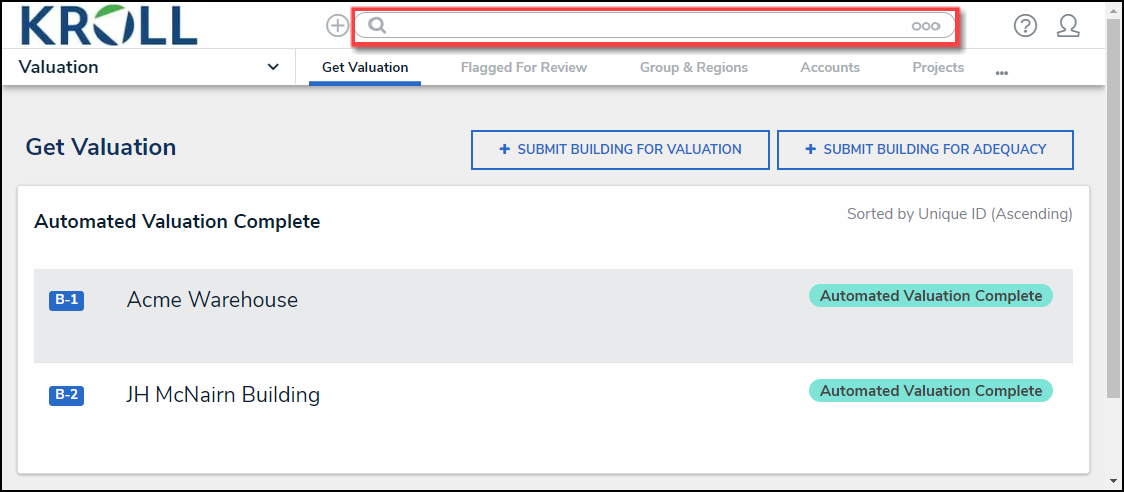
Search Field
Searching for an Object
- Enter an Object Name in the Search field.
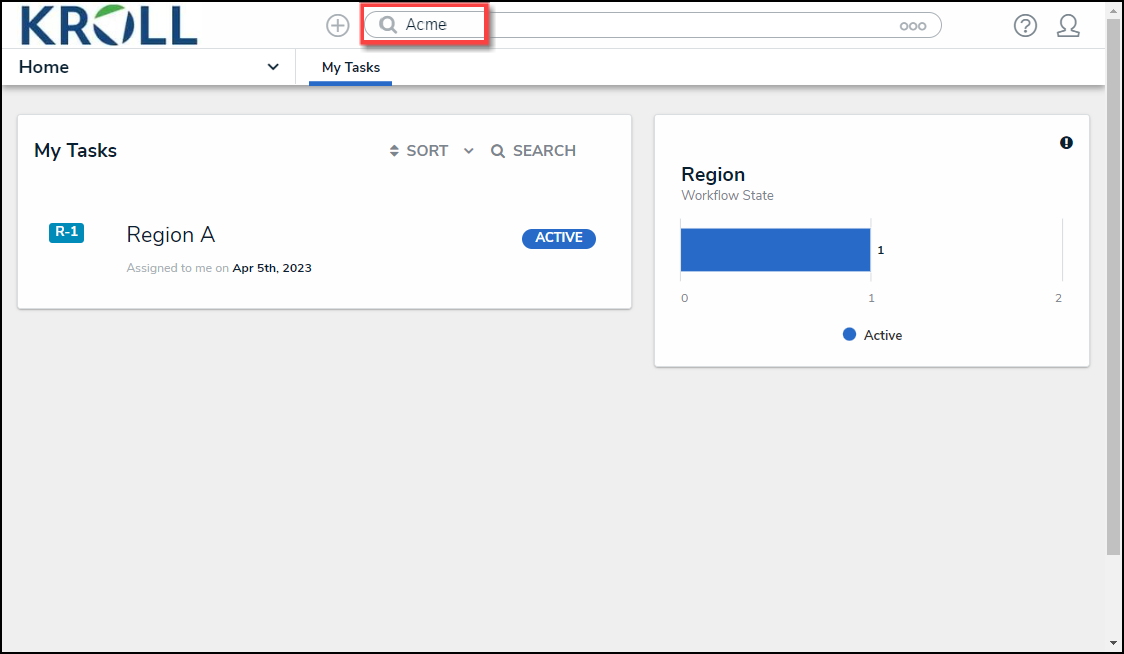
Object Name
- (Optional) Click the Options Menu icon to select an Object Type from the dropdown menu to filter the search results by object type.
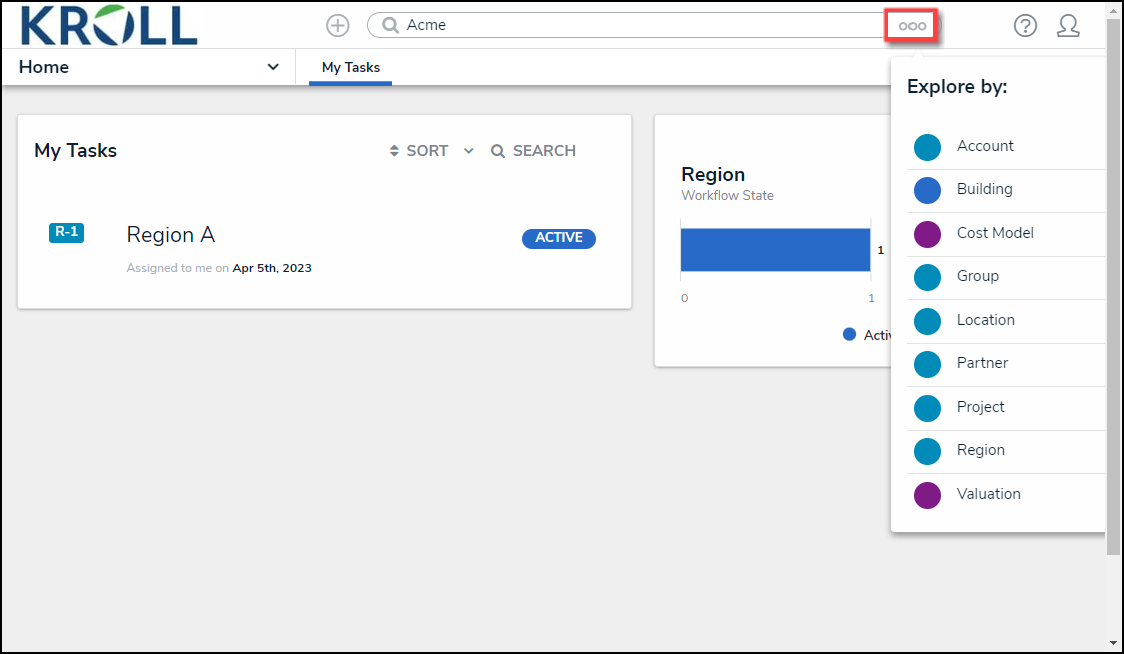
Options Menu Dropdown
Note:
If you filter the search by Object Type, the system will automatically return the search results once you have selected an object type from the Options Menu dropdown menu.
- Press the Enter key on the keyboard.
- The Platform will return the Search Results based on the Object Name entered. The search results are sorted by object name.
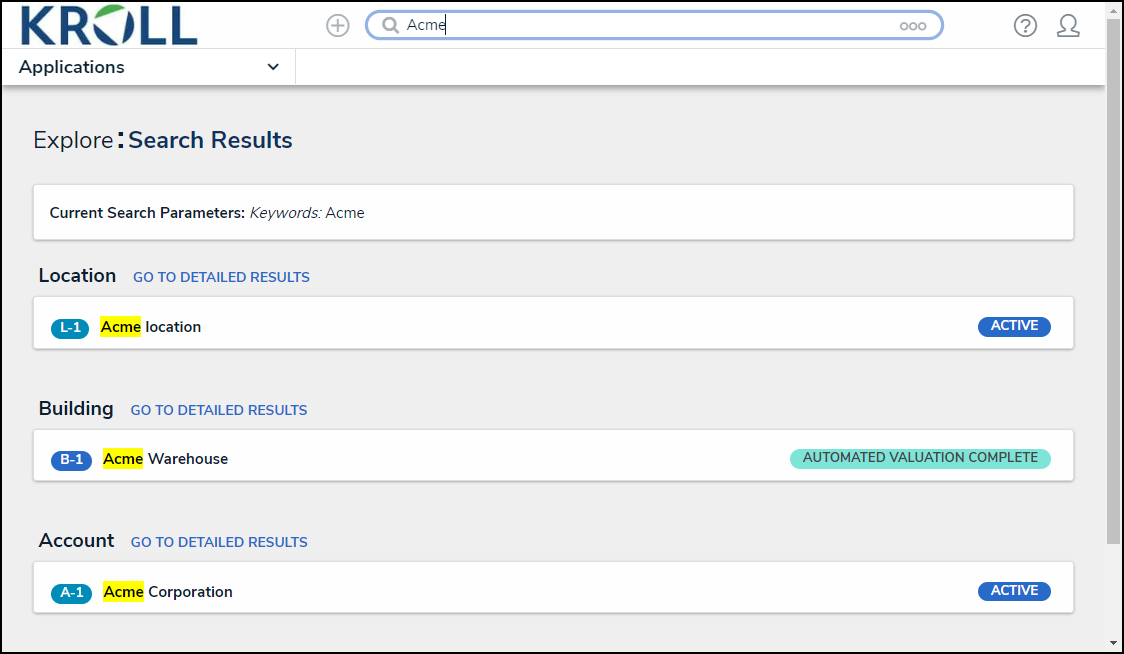
Search Results Screen
- (Optional) Click an Object Name to view further object details. The screen that appears will depend on the user's user group.
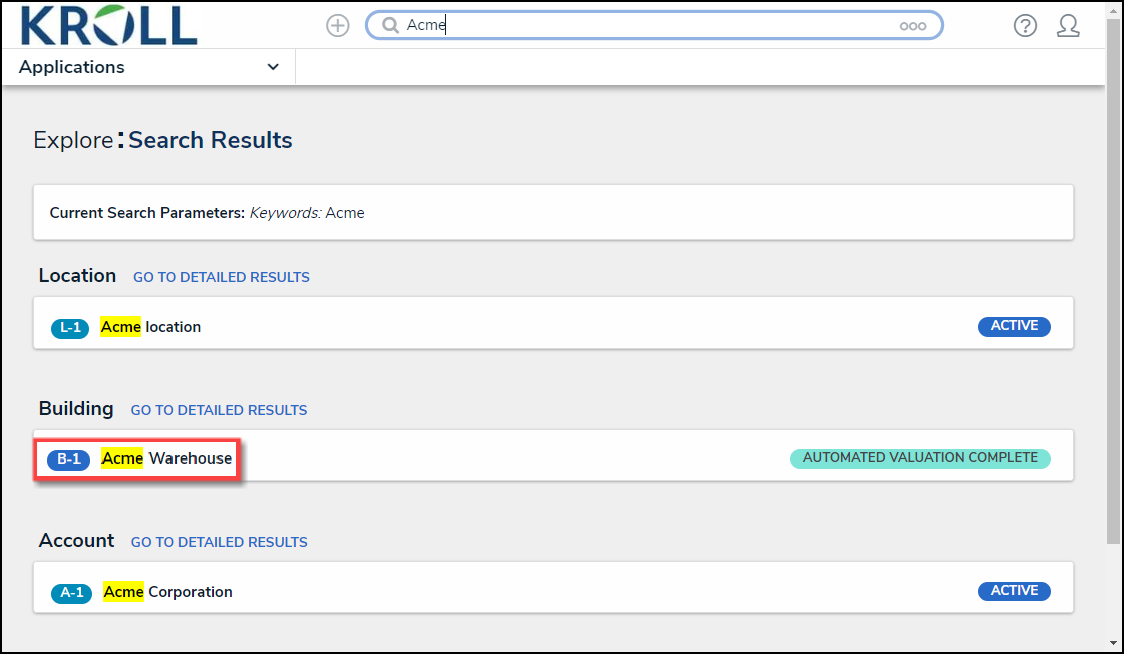
Object Name
(Optional) Searching for an Object Using Filters
- Click the GO TO DETAILED RESULTS link.
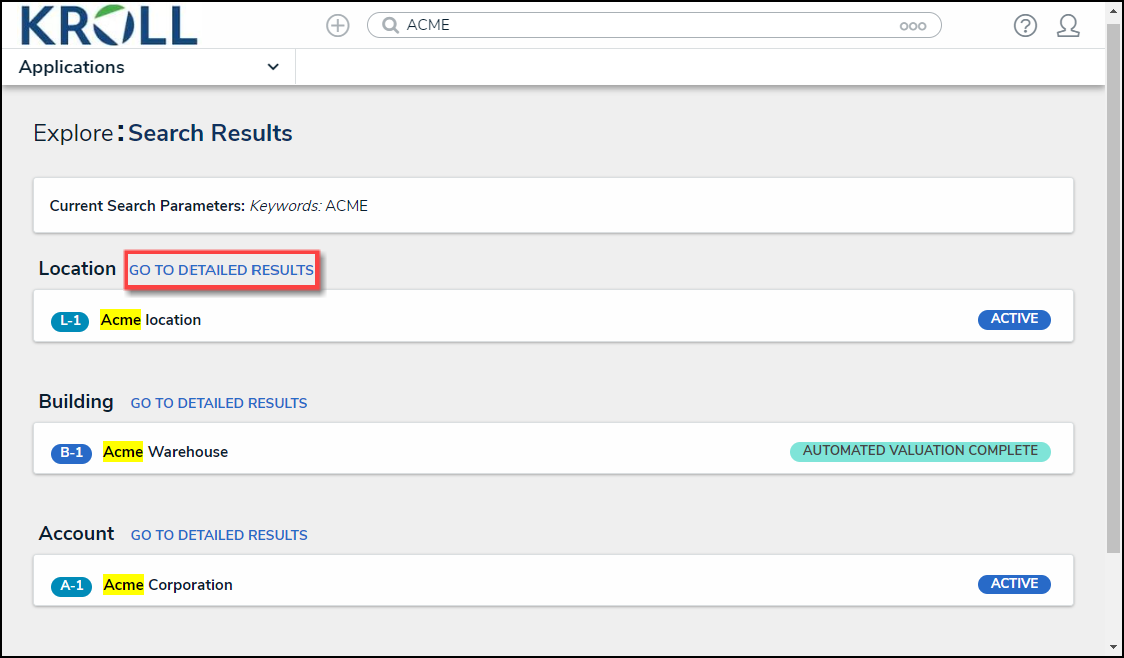
GO TO DETAILED RESULTS Link
- The Search Results screen will refresh, listing a Filter section for the selected Object Type.
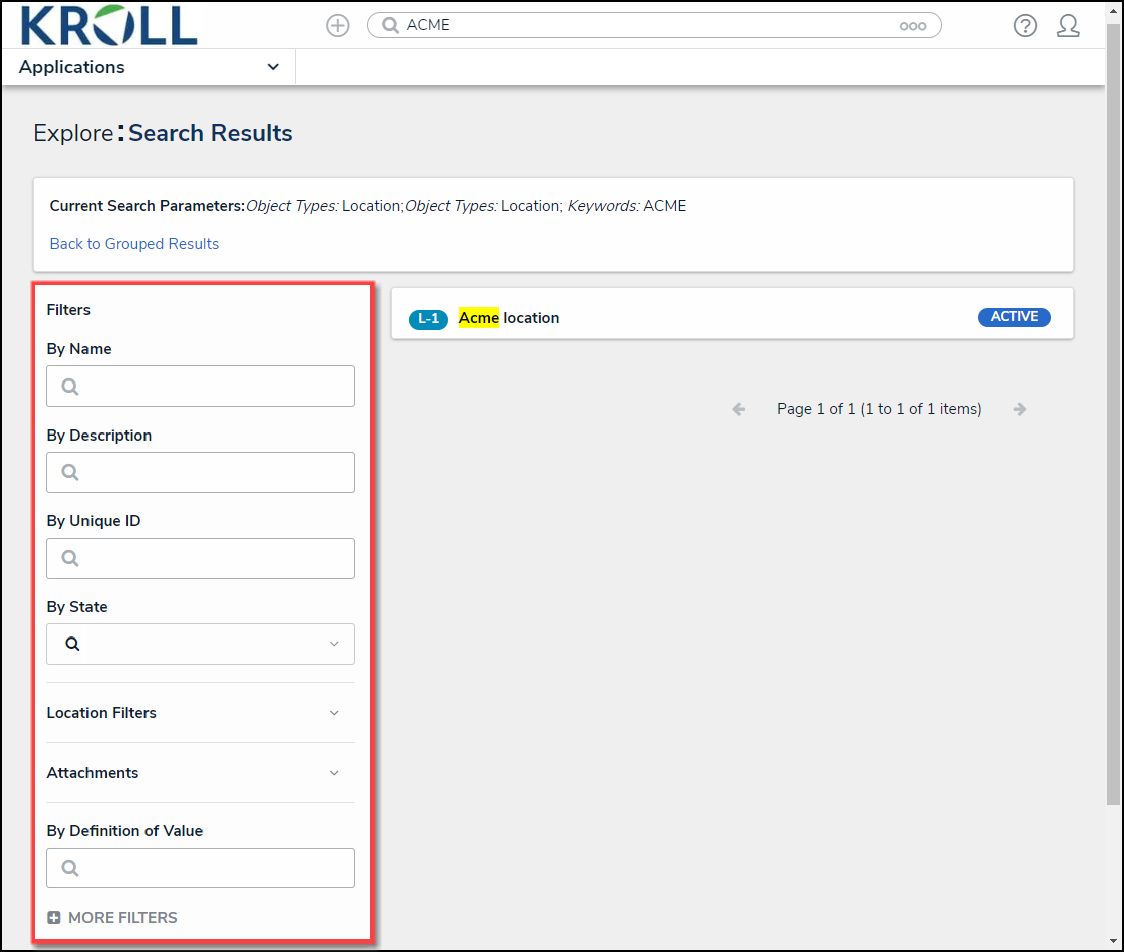
Filter Section
- The following filter options will appear for all object types:
- By Name: The By Name filter narrows the search results by object name.
- By Assessment Type: The By Assessment Type filter narrows the search results by assessment type name.
- By Dimension: The By Dimension filter narrows the search results by assessment dimension (e.g., business unit).
- By Description: The By Description filter narrows the search results by object description.
- By Unique ID: The By Unique ID filter narrows the search results by object unique ID.
- By State: The By State filter narrows the search results by workflow state (e.g., creation, etc.).
-
More Filters: The More Filters link allows users to apply additional plain text, select list, and multi-select list filters on the object type.
- Select or Multi List: Choose one or more options from the dropdown menu.
- Plain Text: Enter one or more keywords in the field. All special characters will be ignored, except @ and !.
- (Optional) Click an Object Name to view further object details. The screen that appears will depend on the User's User Group.
- Click the Back to Group Results link to return to the previous screen.
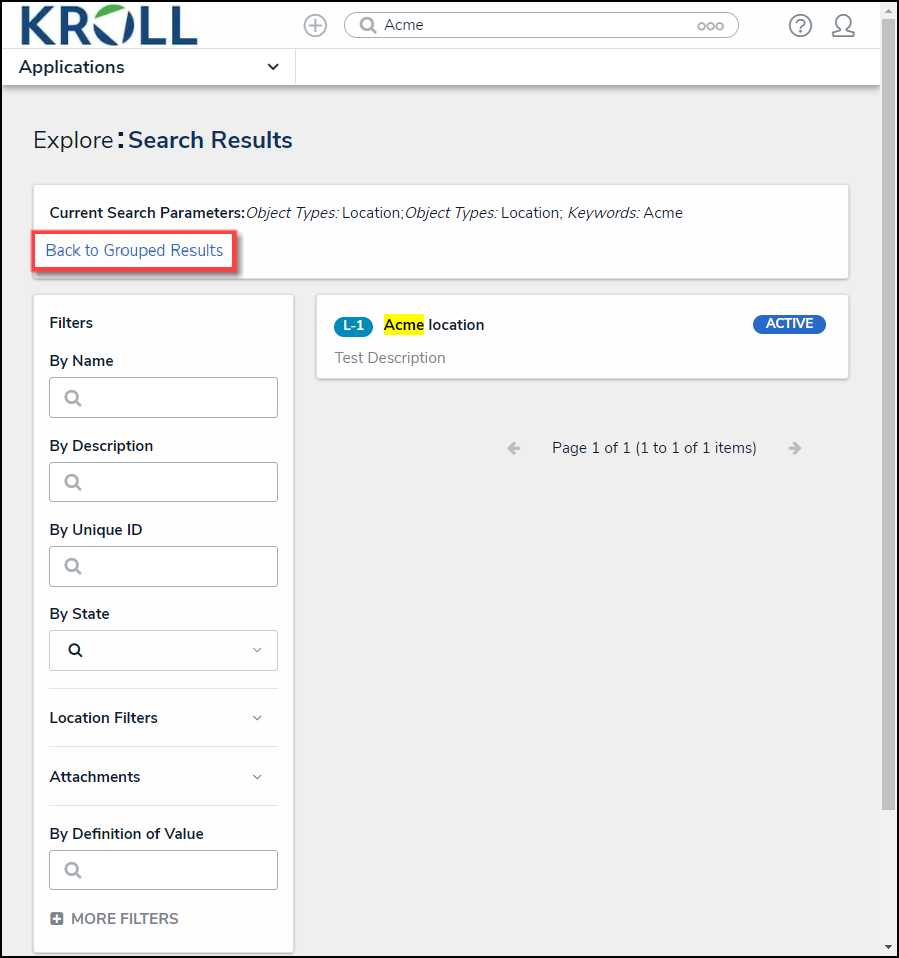
Back to Group Results Link