Article Content
Overview
The Primary Administrator will receive their login credentials from the Kroll Managed Compliance Software. All other users will receive an automatic email from the Resolver Notifications <noreply@resolver.com> address with instructions on creating a password when an Administrator creates an account for you.
Tip:
If you have not received a Create Password email, please check your email folders (junk, etc.) for an email from Resolver Notifications <noreply@resolver.com>.
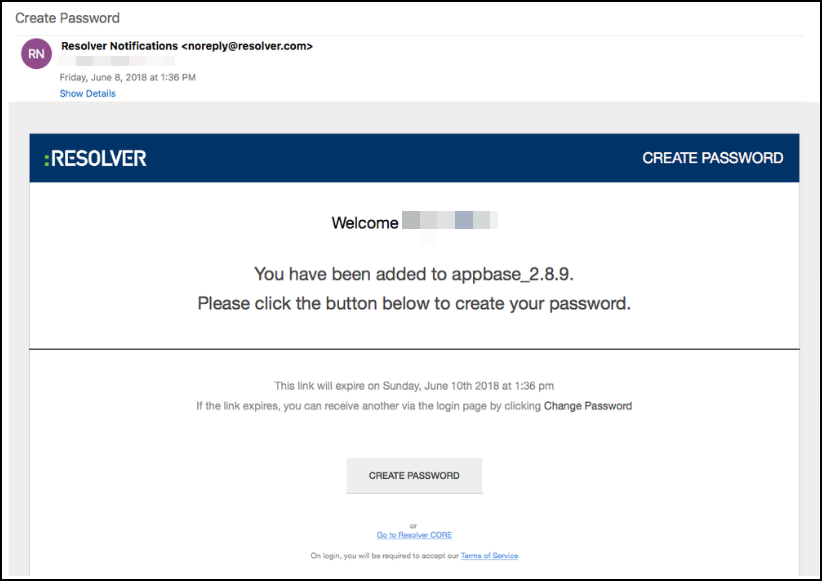
Example - Create Password Email
Note:
The login screen indicates which country your data is currently being stored in.
Data Region
Related Information/Setup
Multi-factor Authentication
If multi-factor authentication (MFA) has been configured for your user, open your Authenticator App, enter the 6-digit code into the Resolver MFA screen and click the Verify button. To set up MFA for the first time or after an MFA reset, review our Multi-Factor Authentication User Setup guide.
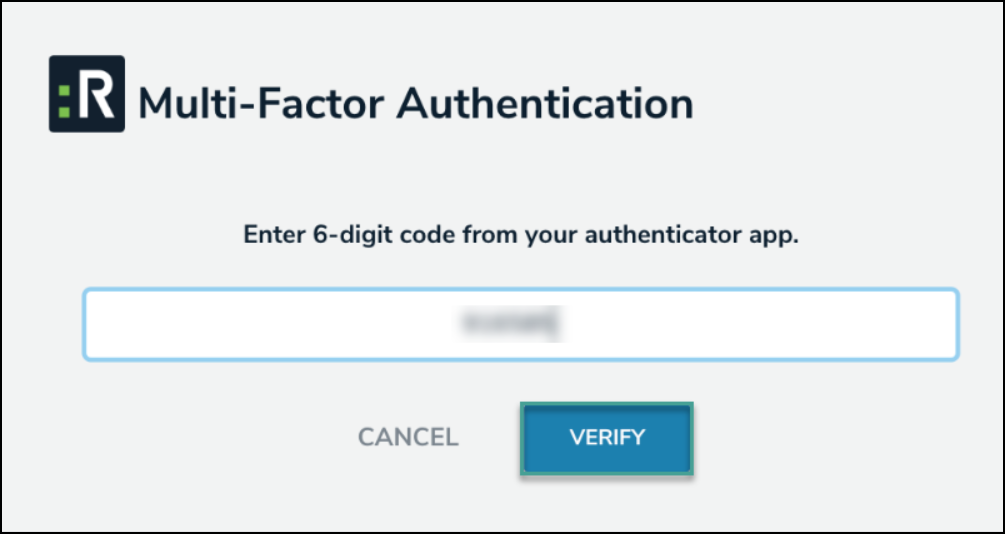
Multi-Factor Authentication Screen
Please refer to the Password Requirements article for more information on the password conditions.
Logging In
- Open the email sent from noreply@resolver.com.
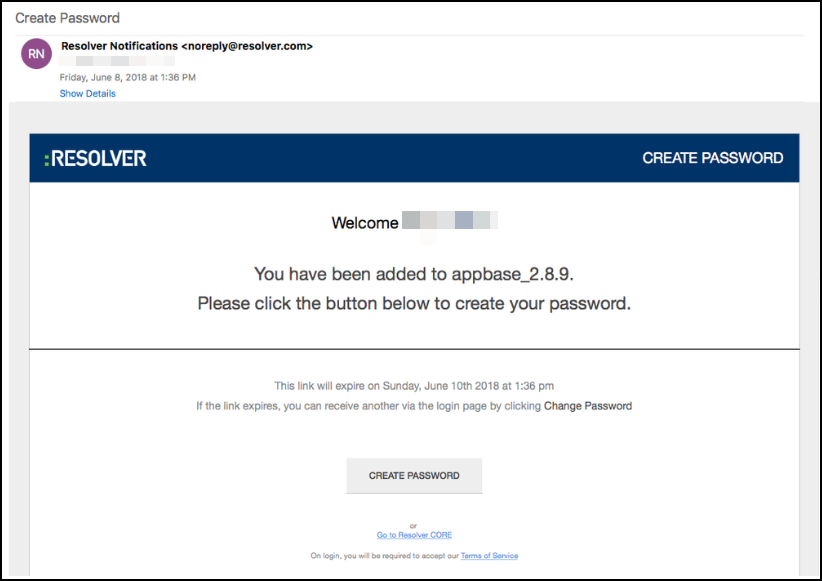
Example - Create Password Email
- Click the Create Password button.
- Enter your password in the New Password field. Your password must be at least 9 characters and contain alphanumeric characters; spaces are also permitted. Please refer to the Password Requirements article for more information on the password conditions.
- (Optional) Click the Show Password icon to confirm the password entered is correct.
- Click Set Password.
- Review the Terms of Service, then click Accept Terms. All new users must accept the Terms of Service before continuing.
- From the Password Confirmation screen, click the Login link.
- From the Login screen, enter the email address that received the create password email in the Email Address field.
- Enter your password in the Password field.
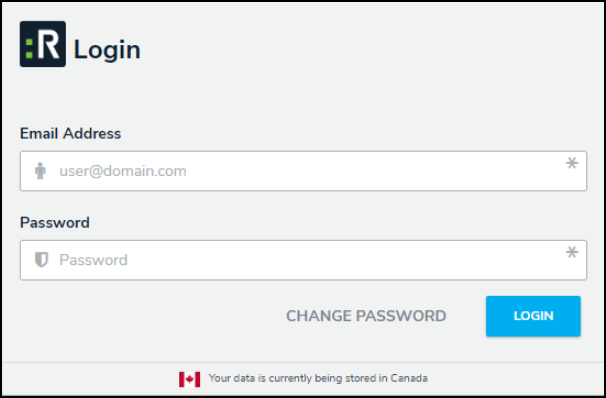
Login Screen
- Click the Login button.